


Search
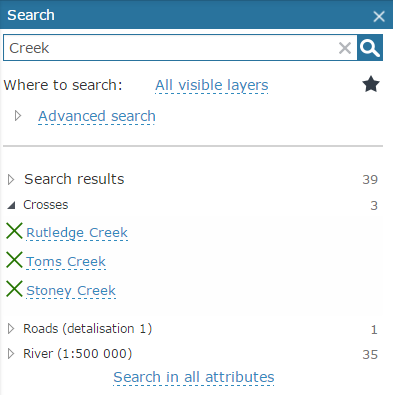
To find some features and documents using
a particular text query, type
the required text in the text search field. The
System searches the requested object based on specified parameters and
compiles the list of found objects and documents that meet your search
parameters. To clear search results, click the Clear
button  .
.
You can save search templates
to set quick search buttons
later. To save search template click Save
template  . The
full-text search can be performed for either all layers or tables, or
for selected layer or table. To specify the layer for search, use
Where to search option to select
the required search variant from the list:
. The
full-text search can be performed for either all layers or tables, or
for selected layer or table. To specify the layer for search, use
Where to search option to select
the required search variant from the list:
-
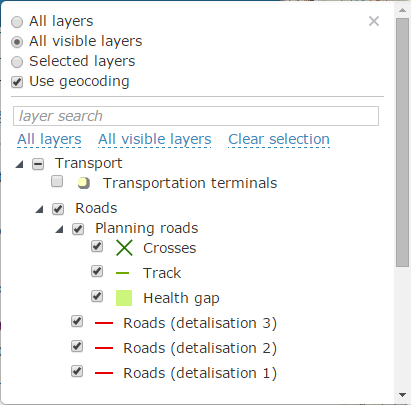
All layers - search will be performed in all map layers
-
All visible layers - search will be performed in all visible map layers only
-
Selected layers - search will be performed only in the selected layers in the list. To select all layers in the list, click the All layers option. To select only visible layers, click the All visible layers option. To deselect all layers, click Clear selection button.
If there is a geocoding service in the services list of your interactive map, the search by address option will be available. To disable the search by address option, uncheck the box for the Search by address option.
If your map contains a large number of layers, and you want to perform your search within some specific layers only, use the search by layers option. To do so, enter the part of the layer's name in the layer search field and the list of layers will be filtered.
Working with the search results list
The search results are shown as a drop-down list of objects grouped by map layers and tables. The following operations are available for found objects:
-
Zoom to object

-
View object identify dialog
 .
.
The same options are available for any search result and layer.
Advanced search
The simple full-text search may be extended with various spatial filters provided to refine your search results.
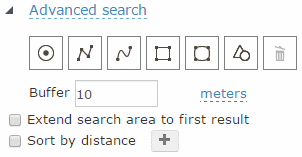
To use spatial filter (i.e. to specify the search area) for searching an object or a document related to it, draw a point, a polyline or a polygon on your map. The following filter options are available for performing spatial search:
-
Spatial filter by point
 – allows
filtering found objects that occur in the specified location on the
map or fall inside the specified buffer zone around this point. To
learn more about drawing points see the Drawing
graphics section
– allows
filtering found objects that occur in the specified location on the
map or fall inside the specified buffer zone around this point. To
learn more about drawing points see the Drawing
graphics section -
Spatial filter by line
 –
allows
filtering found objects intersecting the specified polyline or falling
inside the specified buffer zone around the line. To learn more about
drawing polylines see the Drawing
graphics section
–
allows
filtering found objects intersecting the specified polyline or falling
inside the specified buffer zone around the line. To learn more about
drawing polylines see the Drawing
graphics section -
Spatial filter by freehand polyline
 - allows
filtering found objects intersecting the freehand polyline or falling
inside the specified buffer zone around the freehand polyline. To
learn more about drawing freehand polylines see the Drawing graphics section
- allows
filtering found objects intersecting the freehand polyline or falling
inside the specified buffer zone around the freehand polyline. To
learn more about drawing freehand polylines see the Drawing graphics section -
Spatial filter by polygon
 – allows
filtering found objects that fall inside the specified polygon or
intersect it. To learn more about drawing polygons see the Drawing graphics
section
– allows
filtering found objects that fall inside the specified polygon or
intersect it. To learn more about drawing polygons see the Drawing graphics
section
-
Spatial filter by freehand polygon
 – allows
filtering found objects that fall inside the specified freehand polygon
or intersect it. To learn more about drawing freehand polygons see
the Drawing
graphics section
– allows
filtering found objects that fall inside the specified freehand polygon
or intersect it. To learn more about drawing freehand polygons see
the Drawing
graphics section -
Spatial filter by object geometry
 – allows filtering found objects that intersect
the selected map object (point, polyline or polygon) or fall inside
the specified buffer zone around the selected map object. Left-click
the object, by which you want to filter your search results.
– allows filtering found objects that intersect
the selected map object (point, polyline or polygon) or fall inside
the specified buffer zone around the selected map object. Left-click
the object, by which you want to filter your search results.
To clear spatial filter, click the Clear
button  .
.
To specify the buffer size around new point, polyline, polygon or existent map objects, enter the required value and measurement units for the Buffer parameter in the Spatial filter dialog. The buffer zone will be shown as graphic on the map to visualize your search results.
Extend search area to first result option can be used, if no objects or documents were found in the result of the advanced search. To enable this option check the box near the Extend search area to first result line in the Spatial filter dialog. Thus the system will search for the specified objects or documents, continuously extending the search area until the first object or document that meet the search query is found. The obtained result will be added to the search results list.
Note: spatial filter can
be used without full-text search, e.g., search for particular layer's
objects falling
inside the specified map area
or the nearest objects related to particular point. To perform the search,
specify the spatial filter, select layer for object's search and click
the Search button  .
.
Quick search buttons
Quick search buttons are displayed on Search tab if they have been specified for this map. Click Search button to start search.