


User interface
Appearance of some user interface components can be configured on the User interface tab.
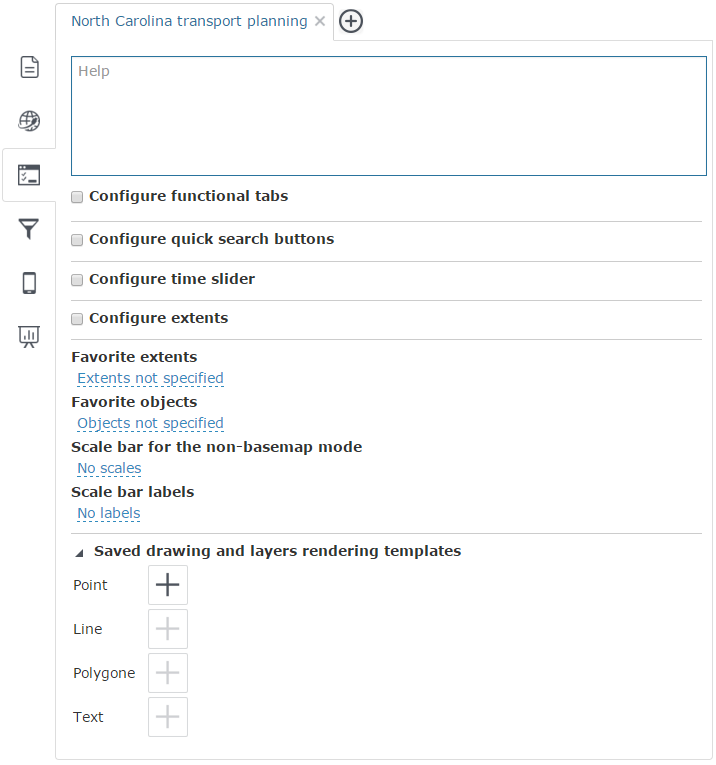
Help – set of texts and images to be displayed in the interactive map interface. This help can contain any information about your map - user guide, information about map objects, etc. To create such help content, enter the help page code in html format.
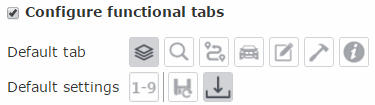
Configure sidebar – check this box to configure the sidebar appearance that will be shown by loading the map. To specify the default tab press needed button. Specify default settings:
-
Default object count - selecting the required calculation variant from the drop-down list.
-
Auto save - enable this option to auto save your project, so that all made changes will be immediately saved on the server. At that Save button will be hidden on the Edit tab.
-
Load from MS Excel - when this option is disabled, the correspondent button will be hidden on the Edit tab.
Configure quick search buttons– check this box to define quick search buttons list. Select saved search template from the list, specify the description and thumbnail which will be displayed on the search tab.

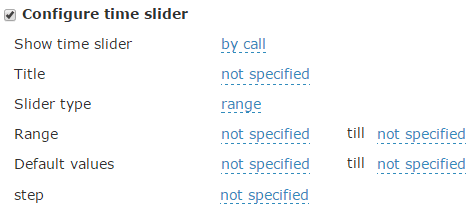
Configure time slider – check this box to configure Time slider. Specify following settings:
-
Choose how time slider will be displayed on the map:
-
Always - time slider will be displayed immediately after map is loaded, all map data will be displayed according to the date on the time slider;
-
By call - time slider will be displayed if the time slider button on the toolbar is pushed.
-
Specify time slider title and choose it's type: concrete date or range.
-
Specify default date range if it's needed. If the range is not specified it will be automatically calculated according to the map services date range.
-
Specify default values if it's needed. If values are not specified tipe slider cursor will be at the beginning of the scale.
-
Specify the step.
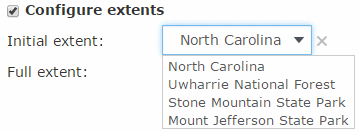
Configure extents – to specify initial and full extent for your
map, check the box near the Configure
extents option. Select the initial and full extent from the list
of favorite extents. To edit specified extent settings, press Delete
 .
.
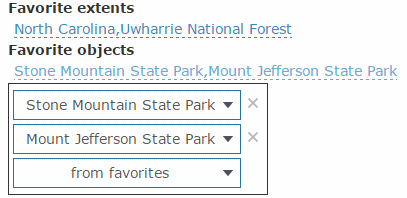
Favorite extents – to create the non-editable list of favorite extents that will be displayed in the map, press Not specified and create your favorite extents list from the previously saved extents.
Favorite objects – to create the non-editable list of favorite objects that will be displayed in the map, press Not specified and create your favorite objects list from the previously saved objects.
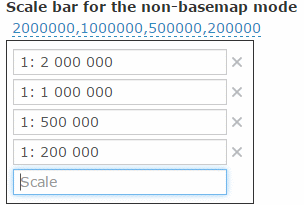
Scale bar for the non-basemap mode – this mode is used, if basemap of your interactive map has been disabled. To make the scales list or add the new scale to the existent list, press the scales list button. Enter the new scale value to the Scale field or edit the existent values in the list.
Scale bar labels – the labels that will be used for different scales on the scale bar. To add new label or edit the existing list of labels, press the label list button. Enter the label text that will be displayed on the scale bar to the Label field, and specify the minimal and maximal scales values for this text in the appropriate fields.

Saved drawing and layers rendering templates – contains the list
of templates available for all users. To add the new template to the list,
press Add button  near the required object
type. Select the template from the list and it will be added to the list
of saved templates.
near the required object
type. Select the template from the list and it will be added to the list
of saved templates.